EPUB reader online
Choose an EPUB file (or try the sample) and read it right here, chapter by chapter, with a table of contents, search, text size and light, dark or sepia pages.
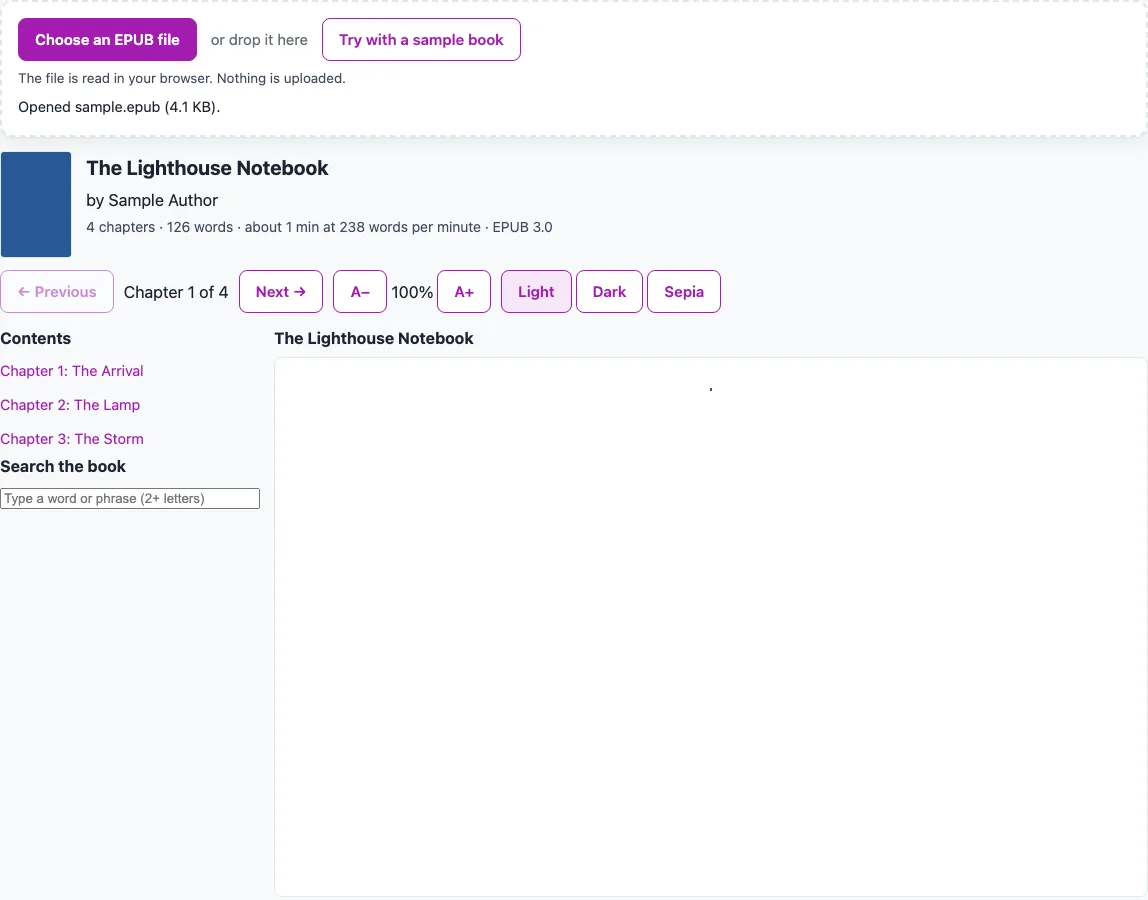
How to use the EPUB Reader
- The sample book, The Lighthouse Notebook, opens on page load. Click “Try with a sample book” to reload it at any time.
- To read your own book, choose an EPUB file or drag it onto the page.
- Read the summary: cover (if declared), title, authors, chapter count, word count, estimated reading time and EPUB version.
- Open “Contents” and click an entry to jump to that chapter. Entries that do not point to a chapter appear as plain text.
- Use “Previous” and “Next” to move through the chapters in reading order. A book without a table of contents still works with these buttons.
- Click A+ or A− to change the text size, in steps from 80 to 200 percent.
- Choose “Light”, “Dark” or “Sepia” under “Page colour”.
- In “Search the book”, type at least 2 characters. Matches are case-insensitive, cover all chapters, and the list shows up to 100 with surrounding words and the total count. Click a match to open its chapter.
- Under “Links in this chapter”, chapter links open that chapter. Web addresses are shown as text and are never opened.
- If a file is refused, read the message. DRM-protected books, files that are not ZIP archives and damaged packages each get a plain error message.
Settings, your place and your searches are not remembered, so set the text size and colour again next time.
What does an EPUB reader show from an ebook file?
An EPUB file is a ZIP archive that contains the pages of a book, its images and fonts, and a package file that lists the book’s details and reading order. This tool opens that archive in the browser, so the book is read on your device with no network request.
How are chapters put in order?
The reader follows the reading order, called the spine, that the book declares. Each section is shown alone in a frame, one at a time. The chapter count uses these reading-order sections and leaves out the navigation document. The sample book has 4 reading-order sections,including a text-free cover page, but its table of contents lists 3 entries.
Where does the table of contents come from?
The table of contents is read from the EPUB 3 navigation document, which is the nav element marked epub:type toc. If that is missing, the reader uses the EPUB 2 NCX file. An entry that points to a file in the reading order jumps to that chapter. Any other entry is shown as plain text.
How are words counted and reading time estimated?
Words are whitespace-separated tokens that contain at least one letter or digit. The same rule is used on every EPUB tool on this site. The estimated reading time divides the word count by 238 words per minute, the silent non-fiction figure from Brysbaert (2019) that this site uses. The result is an estimate, and your own pace may differ.
Why does each chapter run in a locked frame?
Chapters are shown in a frame with the sandbox attribute set to nothing, which blocks scripts, access to the page, forms and popups.Before display, script, iframe, object, embed, applet, base and noscript elements, meta refresh tags and on* event attributes are removed. Images, fonts and url() references in style sheets become temporary blob: addresses. The book’s own CSS is kept, and the text size and colour settings are applied after it.
Why are some links listed instead of clickable?
Links cannot be followed inside a sandboxed frame. Links to another chapter or to the web are therefore listed under the chapter, up to the first 40. Links to an id in the same chapter still work in the text.
Why are some EPUB files refused?
A file is treated as DRM-protected when META-INF/encryption.xml lists a resource with an algorithm other than the two font-obfuscation algorithms, or when META-INF/rights.xml or sinf.xml exists. Such files are refused with a message. Fixed-layout books are shown as plain flowing pages. Files over 100 MB show a warning, because the browser keeps the whole book in memory.
Sources (checked 15 October 2026): w3.org
Frequently asked questions
Is this EPUB reader free to use?
Yes. The tool is free and needs no sign-up. It runs in your browser, and your files and text are not uploaded.
Do I need to install anything to read an EPUB here?
No. Open the page, then choose a file with the file button or drop it onto the page. The sample book opens first so you can see how the reader works.
Can I search for a word inside the book?
Yes. Type a word or phrase of at least 2 characters. Search is case-insensitive and covers all chapters. The results list up to 100 matches with surrounding words, and clicking a match opens its chapter.
Why won’t a DRM-protected EPUB open?
DRM-protected files are refused with a message. The tool treats a file as protected when its encryption file lists a resource with an algorithm other than the two font-obfuscation methods, or when a rights or sinf file is present.
Will my notes, place or settings be saved when I come back?
No. Nothing is remembered. Closing the tab forgets the settings, your place and your searches.
Can I click links inside the chapter text?
Not to other chapters or to the web. Those links are listed under the chapter. Chapter links open that chapter, and web addresses are shown as text only. Links to an id in the same chapter still work.
What happens if my file is very large?
Files over 100 MB get a warning, because the browser keeps the whole book in memory. A damaged file or a file that is not a ZIP archive gets a plain error message instead.
Related tools
- EPUB Metadata Editor: use it when you need to check or change the details stored inside an EPUB file.
- EPUB Validator: use it to check an EPUB file for structural problems before you share it.
- EPUB to text: use it when you want the book’s words as plain text.
- EPUB to Kindle: use it when you are preparing an EPUB for Kindle reading.