EPUB to text
Choose an EPUB (or try the sample) to get its full text in reading order, with optional chapter headings and contents, ready to download as a .txt or copy.
This free epub to text tool turns an EPUB ebook into a plain .txt file. It takes one DRM-free EPUB and collects the text of every chapter in reading order, then gives you one UTF-8 file you can open in any text editor. The conversion runs in your browser, so the book is not uploaded anywhere, and no sign-up is needed. A sample book converts as soon as the page loads, so you can see a result before you choose your own file.
The epub to txt converter can also add chapter headings, a contents list, and a title and author line at the top. You can pick line endings and the separator between chapters. Images, fonts, layout and styling are not kept, and DRM-protected books are refused.
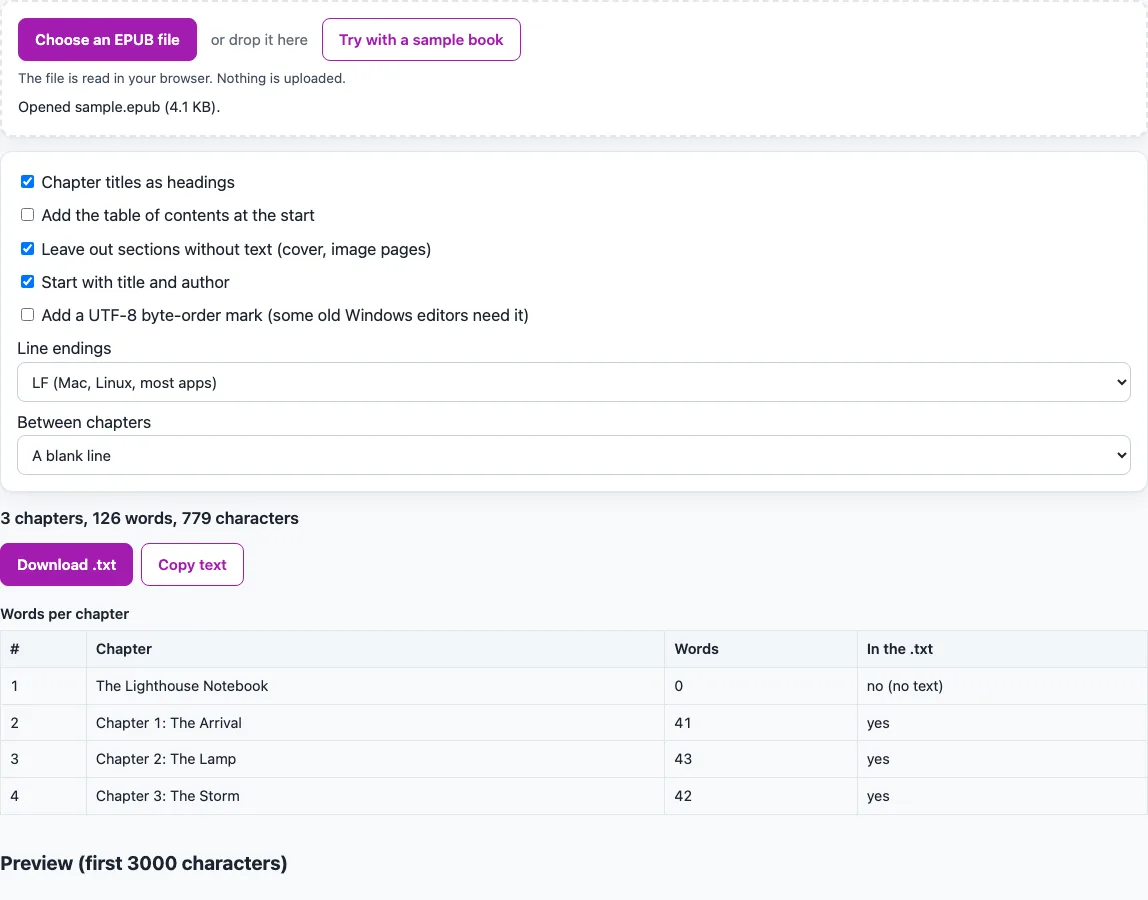
How to use the EPUB to TXT converter
- Choose your EPUB file in the tool at the top of this page, or use “Try with a sample book”. The book converts as soon as it loads.
- Read the summary: chapters included, total words and characters.
- Check the “Words per chapter” table. Each row shows a chapter’s word count and whether it is “In the .txt”.
- Read the preview of the first 3,000 characters to confirm the text looks right.
- Tick “Chapter titles as headings” if you want each chapter to start with its title, underlined with = signs.
- Tick “Add the table of contents at the start” if you want a contents list. It uses the book’s table of contents, or the chapter titles when the book has none.
- “Leave out sections without text (cover, image pages)” and “Start with title and author” are on by default.
- Choose “Add a UTF-8 byte-order mark” (off by default), “Line endings” (LF or CRLF) and “Between chapters”: a blank line, a line of dashes, or a form-feed character.
- Click “Download .txt” to save one UTF-8 file named after the title, or “Copy text” to copy the whole text with LF line endings.
- If the browser blocks copying, a message says so. A DRM-protected book or a file that is not an EPUB gets a message and no file is made.
Set your options before you save or copy.
What does an epub to text conversion keep from a book?
An EPUB is a ZIP file that holds the book’s chapters as web pages, along with files that describe the book. An epub to text conversion keeps only the words of those chapters and drops nearly everything else. Images, fonts, layout, styling and footnote links are lost, so the .txt is plain text only.
In what order does the text appear?
The text of all chapters is taken in reading order, which EPUB calls the spine. The navigation document is left out, so the table of contents page does not appear as text unless you turn on the contents list.Reading order can differ from the table of contents order.
How is each chapter’s HTML turned into lines?
Each chapter is converted by a small converter. Block elements such as p, div, h1 to h6, li, tr and blockquote become line breaks, and br becomes a line break as well. Script, style, head and svg content is dropped, and entities such as & and é are decoded so they appear as & and é.
How are words and characters counted?
Words are whitespace-separated tokens that contain a letter or a digit.A lone dash or ampersand is not counted as a word. In a test book called Tiny Book, chapter Alpha has 7 words and Beta has 5, so the total is 12 words.
Why are some books refused, and why are large files flagged?
A file counts as DRM-protected when META-INF/encryption.xml lists a resource with an algorithm other than the two font-obfuscation algorithms. It also counts when META-INF/rights.xml or sinf.xml exists. In those cases the tool shows a message and does not convert the book. A file that is not an EPUB, such as one that is not a ZIP or has no META-INF/container.xml, gives a plain error message. Files over 100 MB get a size warning.
Why might some text be missing from the result?
Text drawn as an image cannot be extracted, because the tool does not use OCR to read it. Right-to-left and vertical scripts keep their characters but not their layout. Sections without text, such as a cover page, are left out by default, so that omission is a setting rather than a loss of words.
Sources (checked 15 October 2026): w3.org
Frequently asked questions
Is my book uploaded when I use this tool?
No. Everything runs in your browser, and files and text are not uploaded. No sign-up is needed, and the tool is free to use.
Can I convert a DRM-protected EPUB?
No. DRM-protected books are refused with a message, and no .txt file is made. A file counts as DRM-protected when its META-INF files show a rights or encryption setting that the tool does not allow.
Will the .txt keep the images and formatting?
No. Only text is kept. Images, layout, fonts, footnote links and styling are lost in the conversion, so plan on reading the .txt as plain text.
What is the difference between “Download .txt” and “Copy text”?
“Download .txt” saves one UTF-8 file named after the title, using only letters, digits and dashes in the name. “Copy text” puts the whole text on the clipboard with LF line endings. If the browser blocks copying, a message tells you so, and you can use the download instead.
Why does my file start with the title and author?
The start with title and author option is on by default, so the file opens with the book’s title and author. Turn it off if you want the text to begin with the first chapter instead. The option does not change which chapters are included.
What happens if my EPUB is larger than 100 MB?
Files over 100 MB get a size warning. Very large files are also listed among the limits on this page, so check the chapter table and preview after conversion to confirm the result is complete.
Related tools
- EPUB Metadata Editor: use it to check or change the title, author and other details inside an EPUB.
- EPUB reader online: use it to read an EPUB in the browser instead.
- EPUB to Kindle: use it to check an EPUB against Amazon’s Kindle rules.
- EPUB Validator: use it to check an EPUB’s structure.
- HTML to EPUB: use it to package HTML pages as an EPUB.
- PNG to EPUB Converter: use it to build an EPUB from PNG images.
- TXT to EPUB: use it to turn plain text into an EPUB.
- Word to EPUB: use it to turn a Word manuscript into an EPUB.