PNG to EPUB Converter
Choose your PNG, JPG, GIF or WebP pictures, put them in order, and get an EPUB with one picture per page, as a reflowable or fixed-layout book. Your pictures are stored unchanged.
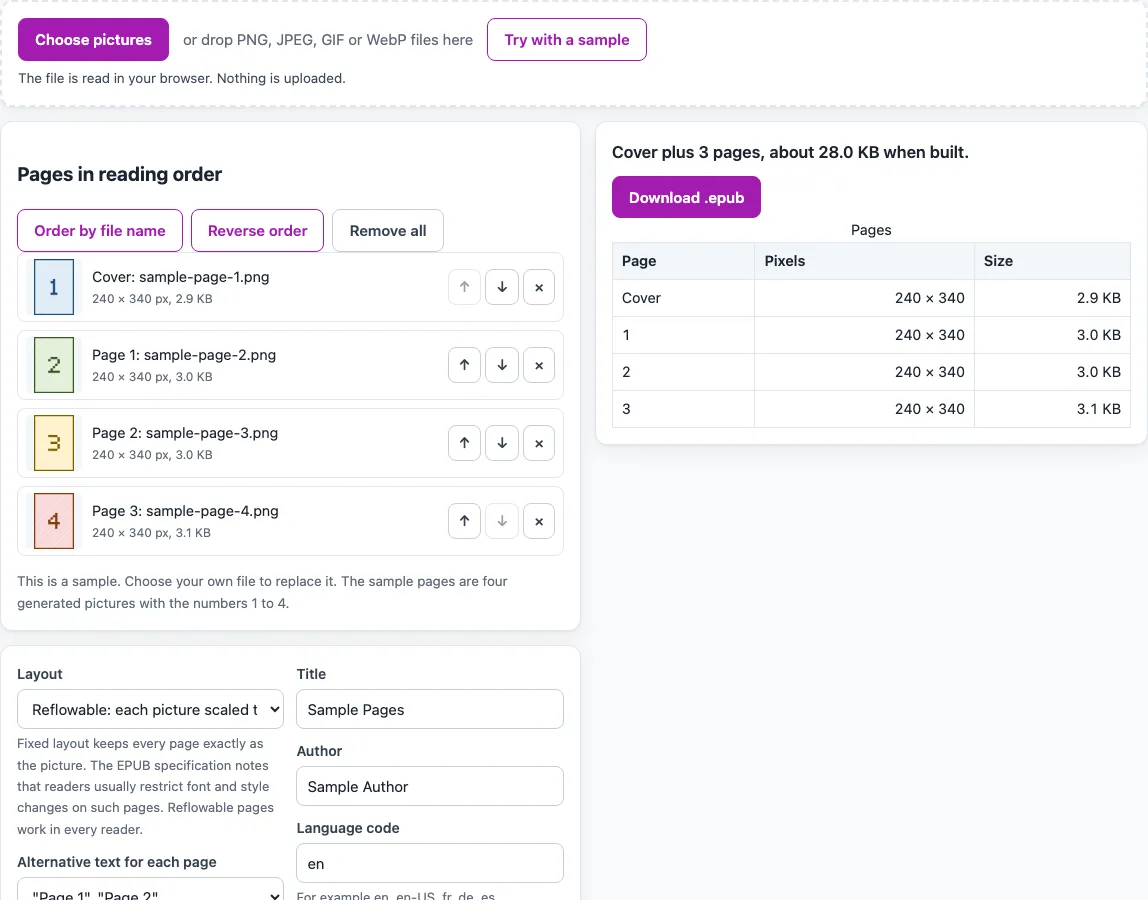
How to use the PNG to EPUB converter
- Click “Choose pictures”, or drop PNG, JPEG, GIF and WebP files onto the page together.
- Check the list. New files are added in natural file-name order, so page2 comes before page10. Any other file (for example HEIC, TIFF, BMP, SVG or PDF) is listed under “Not used” with the reason.
- Put the pages in the right order with “Order by file name” or “Reverse order”. You can also move any picture up or down, or remove it.
- Keep “Use the first picture as the cover” ticked if the first picture should be the cover. Untick it if every picture should be a numbered page. With a single picture, that picture is used as a page and a note tells you so.
- Under “Layout”, choose “Reflowable”, which gives ordinary EPUB 3 pages scaled to the screen, or “Fixed layout”, which keeps each page at the pixel size of its own picture. Not every e-reader supports fixed layout.
- Under “Alternative text for each page”, choose none, “Page 1”, “Page 2” and so on, or the file name. Replace these with real descriptions in your own words afterwards.
- Enter a “Title”, an “Author” and a “Language code”. Read the summary, which shows the page count and an estimated size, and any note about a missing title or author, mixed picture sizes in fixed layout, or a size over 100 MB.
- Click “Download .epub”.
The pictures and text never leave your device during these steps.
What does a PNG to EPUB converter actually make?
A PNG to EPUB converter wraps each picture in its own XHTML page and packs those pages, with the images and the book’s information, into one EPUB file. Each page holds one picture and a table of contents entry called “Page N”. The book also has a title, an author, a language code written in the BCP 47 style, and a random identifier. The picture files are copied unchanged, so the EPUB is roughly as large as the pictures added together, plus a small amount of overhead.
This is why the default sample is small. Four generated 240 by 340 pixel PNG pictures, with the cover option on, become a cover plus three pages. The summary estimates 28.0 KB, and the finished sample EPUB is about 12.1 KB as reflowable and about 12.6 KB as fixed layout, so the estimate is an upper figure. Larger pictures make a larger book.
The result is a picture book, not a text book. Each page is an image, so there is no text layer, and nothing can be searched or read aloud. The tool also does not add panel-by-panel navigation, so a comic is treated as a series of full pages.
Reflowable or Fixed layout: which one fits your pictures?
Choose “Reflowable” when you do not know which reader will open the book. It creates ordinary EPUB 3 pages, and each picture is scaled to the screen with a maximum width of 100% and a maximum height of 100vh.
Choose “Fixed layout” when each page must keep its original proportions. The package is marked as pre-paginated, and each page gets a viewport meta tag that uses the pixel width and height of its own picture. This follows EPUB 3.3 sections 8.2.2.1 and 8.2.2.6. The EPUB 3.3 specification notes that readers usually limit font and style changes on fixed-layout pages, and the tool states this too. Not every e-reader supports fixed layout, so test the file on the reader your readers use.
If your pictures have different sizes, the summary shows a note about mixed sizes in fixed layout. Mixed sizes still work, but each page keeps its own size, so readers may show them at different scales.
Frequently asked questions
Can I convert JPG to EPUB with this tool?
Yes. JPEG files are accepted in the same way as PNG files, so a jpg to EPUB book is made using the same steps. You can also mix JPEG and PNG pictures in one book.
Are my pictures uploaded anywhere?
No. The tool runs in your browser, and the files and text are not uploaded. There is no sign-up, and the tool is free to use.
Does the tool make my pictures smaller?
No. The pictures are stored unchanged. Nothing is resized, recompressed or cropped, so the book’s size is close to the total size of your pictures.
Why does the summary show a note for a single picture?
With only one picture, the tool uses it as a page and shows a note saying so. The cover option needs at least one picture for the cover and at least one more for the pages, so a single image is treated as a page.
Has the EPUB been checked for errors?
Not with EPUBCheck. If you want to check the structure, use the EPUB Validator before you publish. The Fixed layout and Reflowable outputs follow the EPUB 3 structure described above, but the tool itself does not run a validation step.
What should I write in the alt text?
Write a short description of what the picture shows, in your own words. The options “None (decorative pictures)”, “Page 1”, “Page 2” and the file name are only starting points. The cover picture’s alt text is “Cover of” followed by the title.
Related tools
- EPUB Metadata Editor: use it to change the title, author or other details of an EPUB after you create it.
- EPUB reader online: open an EPUB in your browser to see how the pages look before you share them.
- EPUB to Kindle: use it to check an EPUB against Amazon’s published rules before you send it to a Kindle.
- EPUB to text: use it to pull the text out of an EPUB, for example to check your wording.
- EPUB Validator: use it to check the structure of an EPUB, since this tool is not checked with EPUBCheck.
- HTML to EPUB: use it when your book is written as web pages rather than pictures.
- TXT to EPUB: use it when your book is plain text with no pictures.
- Word to EPUB: use it when your book is written in a Word document.