TXT to EPUB
Paste your text or choose a .txt file, pick how chapters are found, add a title, author and optional cover, and download a ready EPUB. The sample shows a three-chapter book at once.
Use this txt to epub converter to turn a plain text file into an EPUB ebook, right in your browser. Paste your text or choose a .txt file, and the tool splits it into chapters, sets the title, author and language, and builds the EPUB for download. It is free and needs no sign-up.
Nothing is uploaded. The EPUB is built in your browser from the text you give it. The default sample is the first two paragraphs of chapters I to III of Lewis Carroll’s Alice’s Adventures in Wonderland, a public-domain text, so you can see the result before you use your own work.
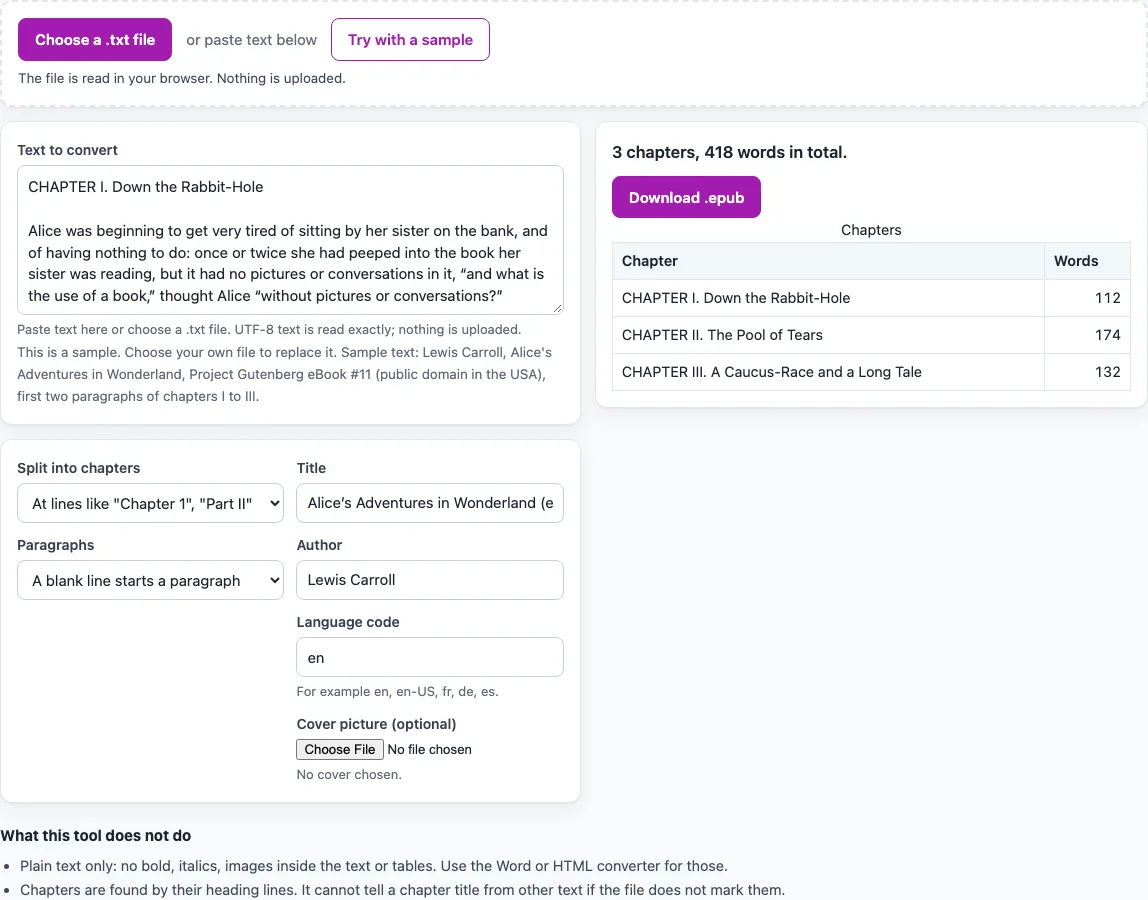
How to use the TXT to EPUB
- Paste your text, or choose a .txt file. Plain text in UTF-8, UTF-8 with a byte-order mark, or UTF-16 with a byte-order mark is accepted.
- Type a “Title”. If you leave it empty, the book is called Untitled.
- Type an “Author”. If you leave it empty, the author is left out of the metadata and a note appears.
- Enter a “Language code” such as en or en-US. A code in the wrong shape is refused, so check it before you continue.
- Optionally, choose a cover picture in PNG, JPEG, GIF or WebP. It becomes the cover image and the first page.
- Under “Split into chapters”, choose lines like “Chapter 1”, a separator line (the default is ***), lines that match a pattern (a regular expression), or no split.
- Under “Paragraphs”, choose how paragraphs are made. For hard-wrapped text, use “A blank line starts a paragraph”, where single line breaks become spaces.
- Check the chapter list. It shows a word count for each chapter and the total.
- Select “Download .epub”.
Keep the default sample at first to see how the settings work. Change one setting at a time, then check the chapter list again before you download.
What does a txt to epub conversion actually build?
A txt to epub conversion takes the words in your text file and wraps them in the files that an EPUB ebook needs. Each chapter becomes one XHTML file with an h1 chapter title and p paragraphs. The EPUB also includes a contents page (an EPUB 3 navigation document), an NCX file for older readers, one stylesheet and the metadata: title, author, language, a random urn:uuid identifier and the last-modified time.
How does the tool decide where chapters start?
The tool uses one of four chapter splitting modes. In heading mode, a line that starts with a word such as Chapter, Part, Prologue, Epilogue or Introduction counts as a heading. It must be up to 80 characters long, with a blank line before and after it. A line holding only a number or a Roman numeral also counts.
The heading line becomes the chapter title and is removed from the body. Any text before the first heading becomes a first chapter named Beginning. The separator mode splits on a line you type, with *** as the default. The regular expression mode matches lines using a pattern you enter, and case is ignored. The “no split” option makes the whole text one chapter.
If no chapter is found, the book becomes one chapter named after the book title, and a note on the page says so. A warning also appears for more than 300 chapters.
Why do paragraph settings matter for text files?
Plain text has no formatting, so the tool needs to know where each paragraph ends. There are three choices. A blank line starts a paragraph and single line breaks become spaces, which suits text that was wrapped at a fixed width. Every line can be its own paragraph. Blank lines can make paragraphs while single line breaks are kept as line breaks in the XHTML.
If your text has no blank lines and you use the first option, the tool warns you, because the whole text may end up as one long paragraph.
What happens to characters that cannot be used?
Control characters that cannot appear in XML are removed. The characters &, < and > are escaped, so each generated XHTML file is well-formed. The tests re-read every generated file. Binary files, such as ZIP, PDF, PNG, JPEG or GIF files, are refused. Text that is not valid UTF-8 is refused with a message to save it as UTF-8, rather than being guessed.
The EPUB is not checked with EPUBCheck, which cannot run in the browser. Its structure follows EPUB 3.3, and each file is re-read by the project’s own tests.
Sources (checked 15 October 2026): w3.org · gutenberg.org
Frequently asked questions
Can I convert a txt file to EPUB without uploading it?
Yes. Nothing is uploaded. The EPUB is built in your browser from the text you paste or the .txt file you choose.
Why is my text file refused?
The file may look binary, for example because it has a NUL byte or a ZIP, PDF, PNG, JPEG or GIF signature. It may also be text that is not valid UTF-8. Save the file as UTF-8 and try again.
Why does my EPUB have only one chapter?
No heading lines were found in heading mode, so the whole book became one chapter named after the book title. Check that each heading is on its own line, with a blank line before and after it.
Can I add bold, italics, images or tables?
No. The tool accepts plain text only. Chapters are found only by their heading lines, so formatting cannot be added in the text.
Does the EPUB open in every ebook reader?
The EPUB is not checked with EPUBCheck. It follows the structure described in EPUB 3.3, and the project’s own tests re-read each file. Test the result in the reader you plan to use.
How are the words in the chapter list counted?
A word is a whitespace-separated piece of text that contains a letter or a digit. The chapter list shows the count for each chapter and the total, so you can check the split before you download.
Related tools
- EPUB Metadata Editor: change the title, author or other details of an existing EPUB.
- EPUB reader online: open an EPUB in your browser to read it before sharing it.
- EPUB to Kindle: convert an EPUB file for use on a Kindle.
- EPUB to text: turn an EPUB back into plain text.
- EPUB Validator: check an EPUB file’s structure.
- HTML to EPUB: build an EPUB from HTML content.
- PNG to EPUB Converter: work from a PNG picture when you need an EPUB cover or image-based file.
- Word to EPUB: start from a Word document when your text is not in a plain text file.