Word to EPUB
Choose a Word .docx file to get an EPUB with chapters, lists, tables, links and pictures. The page tells you exactly what was not converted, such as footnotes and text boxes.
Word to EPUB converts a Word document saved as .docx into an EPUB ebook file, a format many e-readers and reading apps can open. The conversion runs in your browser, so your document is not uploaded anywhere. The tool is free and needs no sign-up.
It keeps headings, bold and italic text, links, lists, simple tables and pictures. It splits the book into chapters at the headings you choose. Before you download, you can check the chapter list with word counts, plus a note for each kind of content that was left out, such as footnotes and headers.
Old .doc files and password-protected documents are refused. If you have one, save it as .docx in Word first.
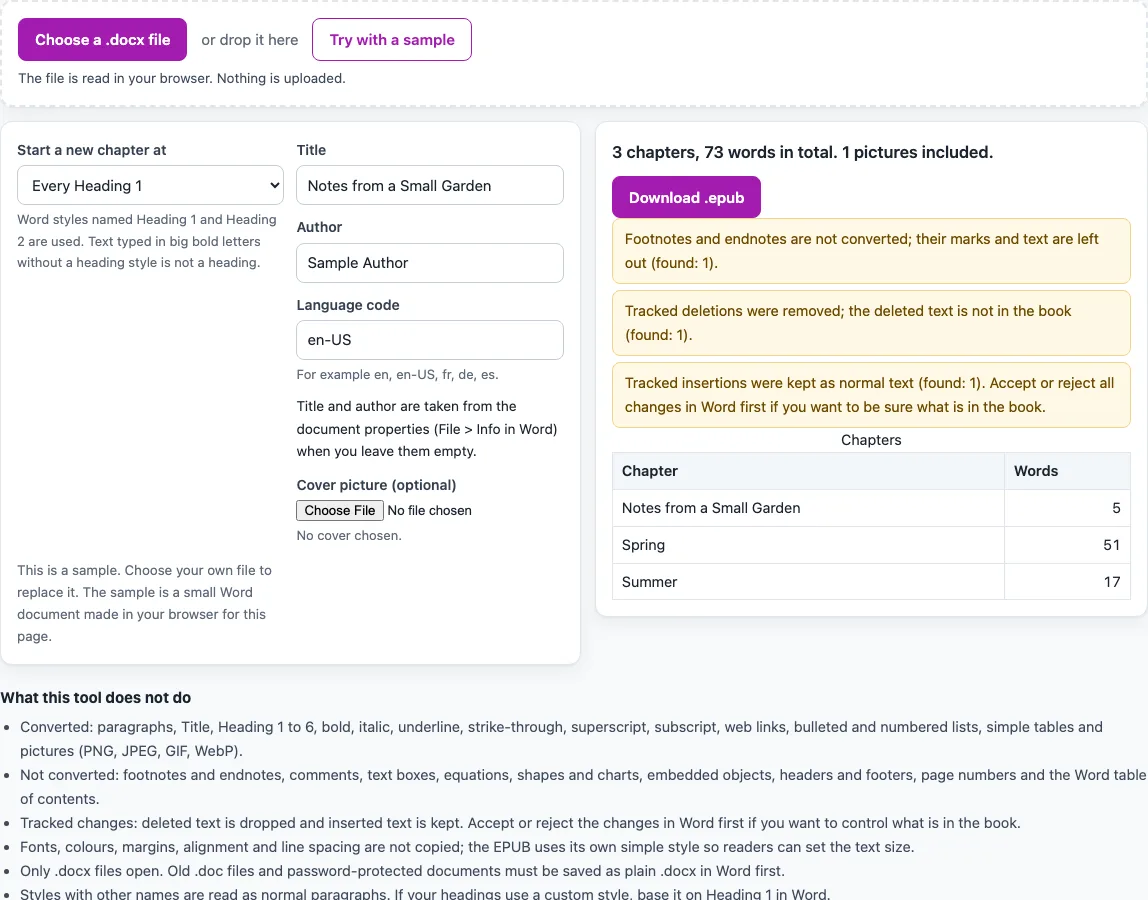
How to use the Word to EPUB
- Save your document in Word as a .docx file. If the file is an older .doc or is password-protected, open it in Word and save a .docx copy.
- Accept or reject any tracked changes in Word before you convert. Deleted text is dropped and inserted text is kept, and the page shows a count of each.
- Mark the structure in Word. Use the Title style for the book title, Heading 1 for chapter titles and Heading 2 for sections inside a chapter. Styles with other names are read as normal paragraphs, so base a custom heading style on Heading 1.
- Choose your .docx file in the tool. It is read in your browser, and nothing is uploaded.
- Under “Start a new chapter at”, pick “Every Heading 1”, “Every Heading 1 and Heading 2” or “Nowhere (one chapter)”. If the document has no such heading, the book becomes one chapter and a note says so.
- Check the title, author and language. When you leave title and author empty, they come from the document properties, then from the Title paragraph or the file name. The language comes from the document, or en if it has none. Change any of them, and add a cover picture if you want one.
- Read the chapter list and its word counts. Then read the notes about content that was not converted, such as footnote marks, comments, text boxes and the Word table of contents.
- Download the EPUB file.
How does a Word file become an EPUB?
The tool reads the .docx file in your browser and writes a basic EPUB 3 file. A .docx file is a ZIP archive of XML parts, and the tool reads the paragraphs, styles, lists, tables and pictures from those parts.
Paragraphs keep their text, and the tool recognises the Title and Heading 1 to 6 styles by their names. Bold, italic, underline, strike-through, superscript and subscript are kept, whether they come from direct formatting or from the Strong and Emphasis character styles. Fonts, colours, margins, alignment and line spacing are not copied. The EPUB uses its own simple style so that readers can change the text size.
Tables keep their header rows, which are marked as repeat-as-header in Word, and those rows become header cells. Merged columns and merged rows keep their spans. Pictures in PNG, JPEG, GIF or WebP format are copied unchanged, with their alternative text when Word has it. Pictures in EMF, WMF, TIFF and other formats are left out and counted.
How does the tool decide where chapters start?
The tool starts a new chapter at each Heading 1, at each Heading 1 and Heading 2, or nowhere, depending on your choice. Text that appears before the first heading becomes a first chapter named after the document title.
Take a document with the text “Intro text here.”, then Heading 1 “One” with the text “alpha beta”, then Heading 2 “Sub” with the text “gamma”, then Heading 1 “Two” with the text “delta epsilon zeta”. Split at Heading 1, it gives three chapters of 3, 5 and 4 words. Split at Heading 1 and Heading 2, the “Sub” section becomes its own chapter, so there are four chapters. Headings count as words in the chapter that contains them.
What happens to tracked changes, footnotes and pictures?
Deleted text is removed, and inserted text is kept. The page shows how many of each it found, so you can check the numbers before you download. Accepting or rejecting the changes in Word first gives you control over the final text.
Footnote and endnote marks are not converted, and neither is their text. Comments, text boxes, equations, shapes, charts, SmartArt, embedded objects, headers, footers and page numbers are also left out. The page counts each kind and lists it in a note. Links to bookmarks are kept as plain text. Web links using http, https, mailto or tel stay as links, and links with other schemes become plain text.
Sources (checked 15 October 2026): w3.org · ecma-international.org
Frequently asked questions
Can I convert an old .doc file to EPUB?
No. Old .doc files are refused, and the page asks you to save the file as .docx in Word first.
Is my document uploaded when I convert it?
No. The file is read in your browser, and nothing is uploaded.
Why is a footnote missing from my EPUB?
Footnote and endnote marks, and their text, are not converted. The page lists them in a note. If you need the text in the book, move it into the body of the document in Word before you convert.
Why did my Word table of contents disappear?
The Word table of contents is not converted, and its lines are dropped. Your chapters come from the heading styles, so the chapter split still works.
Will my fonts and colours carry over?
No. Fonts, colours, margins, alignment and line spacing are not copied. The EPUB uses a simple style so that readers can change the text size.
Is the EPUB checked for errors?
The EPUB is a basic EPUB 3 file, and it is not checked with EPUBCheck. To check the file yourself, you can open it in the EPUB Validator page on this site.
Related tools
- EPUB Metadata Editor: use it to change the title, author or other details of an existing EPUB.
- EPUB reader online: use it to open an EPUB and read it in your browser.
- EPUB to Kindle: use it when you want to convert an EPUB for Kindle reading.
- EPUB to text: use it to get the plain text out of an EPUB.
- EPUB Validator: use it to check an EPUB file for problems.
- HTML to EPUB: use it when your source text is in HTML rather than Word.
- PNG to EPUB Converter: use it when you want to work with PNG pictures for an EPUB.
- TXT to EPUB: use it when your source text is a plain text file.